
A Smart Whiteboard can turn a meeting room from a place of passive listening into a space for shared work. Teams can mark up a proposal, move ideas across a digital canvas, and save decisions before the room empties. But a bright screen alone does not make collaboration better. Setup, software compatibility, touch response, and the quality of built-in audio and cameras all shape the everyday experience.
Education-technology author and speaker George Couros has said, “Technology will never replace great teachers, but technology in the hands of a great teacher can be transformational.” The same idea applies to business teams: tools matter most when they fit the people and work around them. This guide compares ten smart whiteboards for business in 2026, with attention to display quality, annotation, video meetings, integrations, security features, support, and total cost. It also considers practical details, such as whether a remote participant can read small text or whether a presenter can share a board without fumbling through menus.
No display is magic. A polished product demo may hide a clumsy daily workflow, and the best choice for a small huddle room may frustrate a large conference team. The comparisons that follow aim to make those trade-offs visible, while recognizing that real needs differ across organizations. A little friction can remain. That is worth noticing, too.
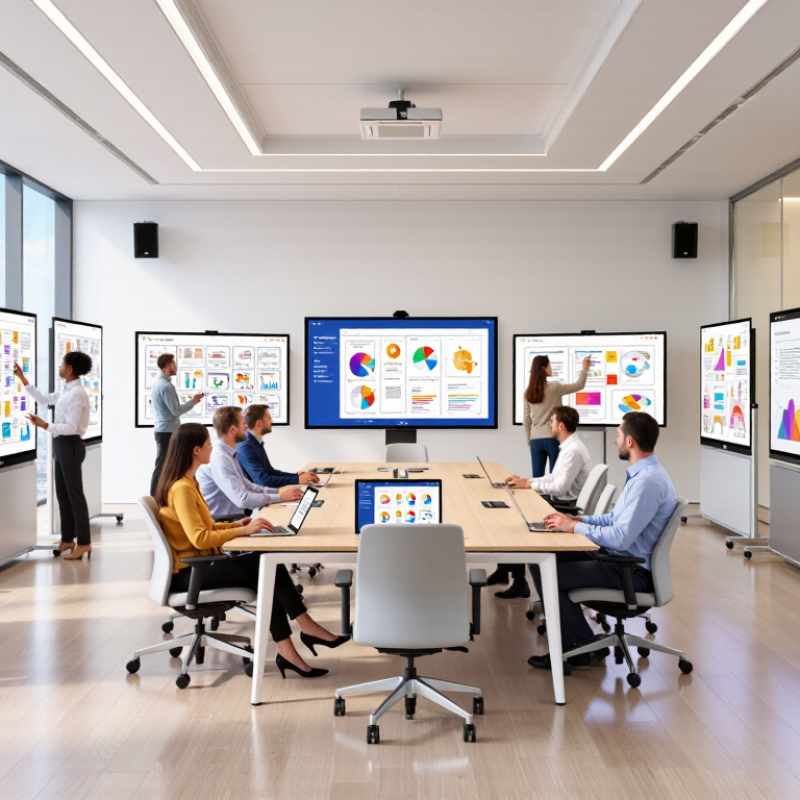
A smart whiteboard is more than a large touch display. For business use, its image quality matters during planning, training, and video meetings. 4K UHD means 3,840 × 2,160 pixels, following the ITU-R definition. That equals about 8.3 million pixels in a 16:9 layout.
The extra detail makes small text, product diagrams, and shared spreadsheets easier to inspect. Fine lines remain clearer when several people stand near the screen. However, resolution alone does not guarantee a useful board. A weak touch layer can interrupt writing, while poor brightness may flatten charts in a sunlit room. I would check both before approving a purchase.
Look closely at real working conditions. Test handwriting near the screen edges, open a detailed spreadsheet, and display remote participants at different distances. The board should respond quickly, support accurate palm rejection, and keep text readable without excessive glare. Built-in microphones and speakers also deserve practical testing, not just specification-sheet approval.
There is a catch.
A 4K panel can still feel disappointing if software scales content badly. Some systems leave menus too small, while others waste screen space around shared documents. Reliable evaluation should include accessibility, update support, privacy controls, and compatibility with existing meeting tools. The most expensive option may not suit every room, especially when users need simple annotation more than advanced collaboration features.
A business whiteboard should be judged by touch performance, operating system flexibility, security, and total cost of ownership. Touch accuracy matters during a crowded workshop. Test writing with a dry finger, stylus, and glove. Check palm rejection, multi-user input, and response time at the screen’s edges. A two-second delay can quietly damage meeting quality.
The operating system should support approved applications, browser updates, device management, and accessible file formats. Compatibility beats novelty. The Verizon 2024 Data Breach Investigations Report found that the human element appeared in 68% of breaches. Therefore, require multi-factor authentication, role-based access, automatic screen locking, encryption, and remote wiping. Security settings must be visible to administrators, not buried in menus. Small controls matter.
Total cost extends beyond the purchase invoice. Include installation, mounts, subscriptions, replacement pens, energy use, training, and support hours. The IBM Cost of a Data Breach Report 2024 placed the global average breach cost at $4.88 million, showing why neglected controls can become expensive. Yet security spending alone does not prove value. Build a three-year cost model and test it with real meeting schedules. I would still challenge my own scoring: a cheaper panel may win financially, while creating slower collaboration. That trade-off deserves evidence, not optimistic assumptions.
Choosing among the ten best smart whiteboards for business requires more than comparing screen size. A bright 4K display keeps spreadsheets readable in sunlit meeting rooms. Anti-glare glass also reduces reflections during video calls. However, higher resolution does not guarantee better usability. Touch accuracy, stylus response, and menu speed matter more during live presentations. I would test each board with small text, shared diagrams, and handwritten notes before making a purchase.
Collaboration features separate these ten business picks. Strong options support wireless casting, multi-user editing, cloud file access, and video conferencing without complicated setup. Guests should join quickly, even from personal laptops. Check whether the board supports common file formats and preserves notes after a session. Some systems advertise seamless teamwork but require extra accounts or paid software. That weakness can frustrate clients and slow meetings.
Support deserves equal attention. Compare warranty length, replacement procedures, training resources, and response times for technical issues. On-site service may justify a higher price for a busy office. Remote support is often enough for smaller teams. Still, published promises need verification. Ask for service terms in writing. My testing preference is practical: run a full meeting, invite remote participants, export the notes, and repeat the process after a firmware update. One overlooked detail can matter.
A brand-neutral comparison of common business display configurations. Specifications describe typical market options, not guaranteed features of a particular product; verify the exact model and regional terms before purchasing.
| Pick | Typical display configuration | Touch and writing | Collaboration fit | Common connectivity to look for | Support check before buying |
|---|---|---|---|---|---|
| 1. Compact huddle-room board | 55-inch, 4K UHD (3840 × 2160) interactive display | Multi-touch; confirm supported simultaneous touch points and palm rejection | Small-room brainstorming and annotation over shared content | HDMI, USB touch, network connection; wireless sharing depends on included software | Confirm wall-mount compatibility, replacement-panel availability, and warranty length |
| 2. Standard meeting-room board | 65-inch, 4K UHD interactive display | Multi-touch; compare pen accuracy and annotation tools | Everyday presentations, group notes, and in-room collaboration | HDMI and USB are common; check for USB-C and wireless screen sharing | Check business-hours support, firmware update policy, and advance-replacement options |
| 3. Large conference-room board | 75-inch, 4K UHD interactive display | Multi-touch; ensure writing remains responsive across the full panel | Larger groups, shared planning, and viewing from farther seats | Multiple HDMI inputs, USB touch, and network access are useful meeting-room checks | Verify installation service, onsite repair coverage, and the process for handling dead pixels |
| 4. Extra-large training-room board | 86-inch, 4K UHD interactive display | Multi-touch; check shared-writing support and touch-point limits | Training, workshops, and large-room visual collaboration | HDMI, USB touch, and wired network; confirm any built-in wireless sharing features | Check freight, mounting, and onsite service terms; large panels can require specialized handling |
| 5. Video-meeting-focused board | 65–75-inch, 4K UHD interactive display | Touch annotation; camera and microphone may be separate or integrated, depending on configuration | Hybrid meetings with shared notes and remote participants | Check camera, microphone, speaker, USB, and meeting-platform compatibility individually | Confirm support covers the complete video setup, not just the display panel |
| 6. Wireless-sharing-first board | 65–86-inch, 4K UHD interactive display | Multi-touch; wireless presentation and touchback capabilities vary by system | Rooms where several participants frequently present from their own devices | Check supported operating systems, network requirements, and simultaneous sharing limits | Ask whether support can troubleshoot network and device-compatibility issues |
| 7. Bring-your-own-computer board | 65–75-inch, 4K UHD interactive display | Touch works with a connected computer; confirm operating-system and driver support | Teams that prefer existing laptops and established meeting software | HDMI plus USB touch; USB-C video and power delivery are model-dependent | Check driver availability, security updates, and support for the organization’s computer platforms |
| 8. Built-in-computing board | 65–86-inch, 4K UHD interactive display | Multi-touch; built-in computing environment and app support vary by model | Rooms that need a ready-to-use board without a permanently connected computer | Check Wi-Fi, Ethernet, USB, HDMI, and whether additional computing hardware is required | Verify operating-system update period, app support, and security-patch commitments |
| 9. Mobile-room board | 55–65-inch, 4K UHD interactive display | Multi-touch; confirm whether the selected stand supports the panel’s weight and mounting pattern | Flexible meeting spaces and teams that move collaboration between rooms | Wireless sharing and accessible front-facing ports are practical features to check | Confirm stand availability, wheel locks, safe-moving guidance, and coverage for accessories |
| 10. Managed-fleet board | 65–86-inch, 4K UHD interactive display | Multi-touch; prioritize consistent configuration across rooms | Organizations managing multiple boards across offices or campuses | Check Ethernet, centralized settings, device-management options, and network controls | Request written terms for fleet support, update schedules, escalation, and multi-unit service |
Buying note: “4K UHD” refers to a 3840 × 2160 pixel display resolution. Touch performance, bundled software, warranty coverage, service response times, and update support vary by exact model and seller; compare the published specifications and written support terms for each shortlisted unit.
A smart whiteboard should support demanding meetings, not merely display slides. Check every port before installation, especially HDMI Forum 2.1 and USB-IF PD 3.1. HDMI 2.1 can provide up to 48 Gbit/s of bandwidth, supporting high-resolution video and smoother screen sharing. However, the number alone proves little. Confirm the input accepts the required resolution, refresh rate, and copy-protection standard. A certified cable also matters. Cheap cables may cause flickering, blank screens, or random signal drops.
USB-IF PD 3.1 can deliver up to 240 W through Extended Power Range. That capacity may power a connected computer, docking device, or room accessory. It does not mean every whiteboard supplies 240 W. Review the port label, charger rating, cable rating, and thermal limits. During practical testing, I would connect a laptop, camera, and display adapter at the same time. Then I would monitor charging stability for at least thirty minutes. Small oversights can become meeting delays.
Tips: Ask for the technical manual, not only the sales sheet. Test HDMI at the intended resolution before mounting the board. Use a short, certified cable where possible. Check whether USB-C power remains stable during video transfer. I would also leave headroom below 240 W. Maximum ratings are useful, but real installations can behave differently. Test twice.
Smart whiteboards can improve hybrid meetings, but their microphones, cameras, cloud links, and shared files expand the attack surface. NIST CSF 2.0 offers a practical structure for securing deployment through Govern, Identify, Protect, Detect, Respond, and Recover.
Govern means assigning ownership before installation. Security, facilities, and meeting administrators should approve access rules, retention periods, and firmware schedules.
Identify every board, connected account, network path, and stored annotation. A simple asset register helps. We once found an unused meeting-room account still enabled after a team relocation. That gap matters.
Protect devices with unique credentials, strong authentication, network segmentation, encryption, and restricted casting permissions. Disable unused ports and review administrator access monthly.
Detect unusual logins, repeated pairing attempts, unexpected data transfers, and disabled security settings. Alerts need a named reviewer. Otherwise, monitoring becomes decoration.
Respond with a written playbook covering isolation, evidence preservation, user notification, and account resets. Practice it with a simulated lost tablet or compromised meeting link. Test it.
Recover by restoring approved configurations, validating backups, and documenting lessons for the next rollout.
NIST’s framework is flexible, but flexibility can invite vague ownership. Teams should record decisions, measure response times, and revisit controls after real incidents or major platform changes.
"*" indicates required fields